Configure Data Target Layer Fields
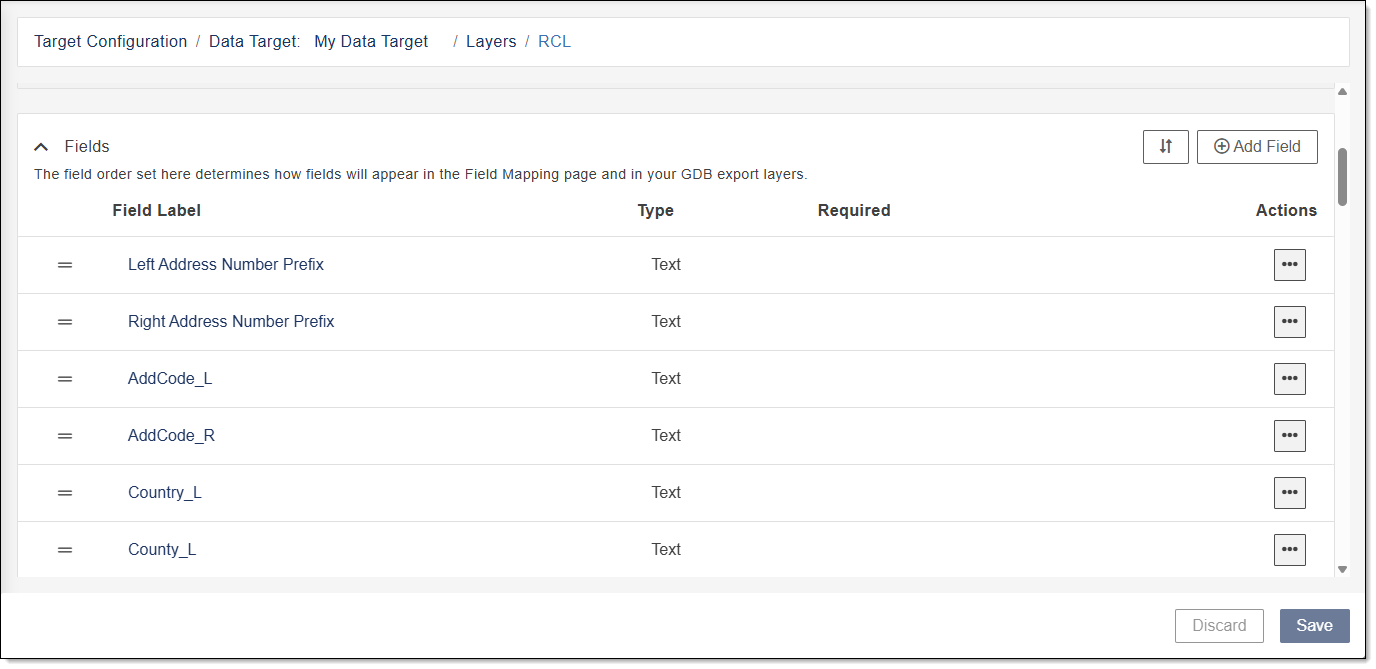
The Configure Data Target Fields for a Layer section of Data Target Configuration enables you to add new fields for a layer, edit an existing field for a layer, delete a field for a layer, and customize how the fields appear in the Field Mapping page and in your geodatabase (GDB) output.
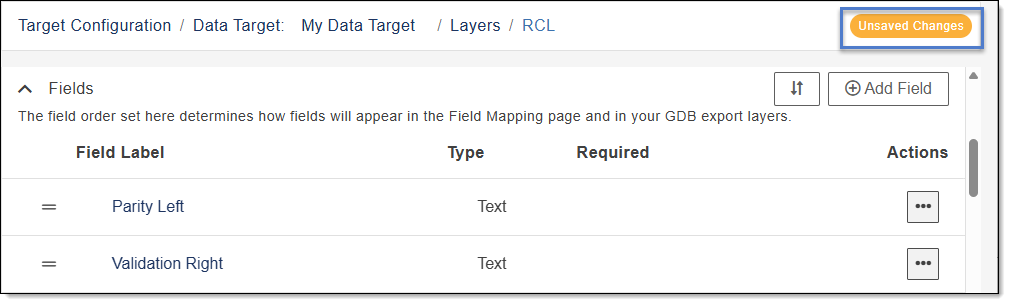
Important: Once you are satisfied, don't forget to save your changes—unsaved changes are lost if your session ends! A warning indicator in the upper-right hand corner lets you know when there are pending changes. Click the Save button at the bottom right corner to permanently save all changes applied to your fields.
 Add a Custom Field to a Layer
Complete the following to add a custom field to a layer.
- In the Navigation Bar, select Account Settings.
- From Account Settings, select Data Target Configuration.
- Locate the data target you want to edit.
-
In the Actions column, select
 to view available actions and select Edit.
The Target Configuration - Layers window opens.
- Locate the layer you want to edit.
- In the Actions column, select Edit Layer.
- Expand Fields to view a list of Field Labels and Actions for the layer.
- Click Add Field.
- Click in the Enter a column name box and enter a friendly name for the new field.
-
Click Save
 to save or X to delete.
 - Locate the new field in the Field Label list and configure the settings.
- Field Name: Click in the Field Name box and type a field name with no spaces (e.g. St_PreTyp). This field is case sensitive.
- Required: Mark the Required check box to make the field mandatory for a particular layer. Fields that are required are identified in the Required column of the Fields list.
- Type: Select the type of field: Text, Integer (numbers without decimal points), Float (numbers with decimal points), or Date.
Max Characters: When the type selected is Text, enter the maximum allowable characters for the field.
By default, text fields are defaulted to 255 characters.
The field length for text fields range between 1 and 10,485,760. When using ArcMap, the max character field length limit is 255. When using ArcGIS Pro, the max character field length limit is 10,485,760.
If a field length is entered outside the allowable range, the Max Characters box is highlighted in red and a warning is shown. Enter a valid field length to correct and click anywhere on the page to remove the warning.
If a field is saved with an invalid Max Characters entry a yellow warning is shown
 , and you cannot publish the layer until it is corrected.
- Description: Enter a description for the new field. For example, if the field name is Street Name Pre Type, the description may be: A word or phrase that precedes the Street Name element and identifies a type of thoroughfare in a complete street name.
- If finished click Save in the lower right corner or to cancel and undo all of your changes, click Discard.
- To view the next field in the Field Label list, click Next Field.
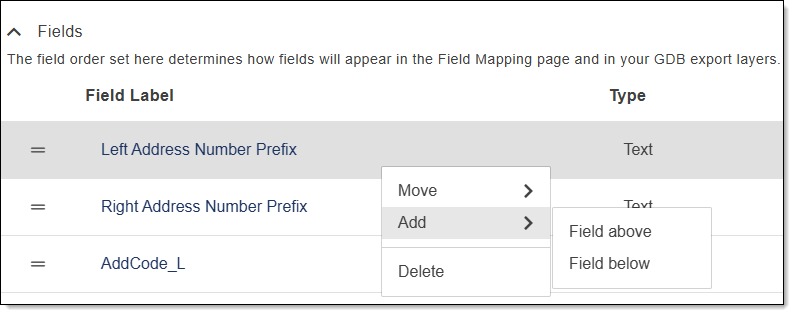
Tip: To quickly add a custom field, follow the instruction above to locate the Fields section. Right-click on the field row where you want to add the field, select Add and choose Field above or Field below. You can then configure the settings for the new field.
Edit Settings for a Data Target Layer Field
- In the Navigation Bar, select Account Settings.
- From Account Settings, select Data Target Configuration.
- Locate the data target you want to edit.
-
In the Actions column, select
to view available actions and select Edit.The Target Configuration - Layers window opens.
- Locate the layer you want to edit.
- In the Actions column, select Edit Layer.
- Expand Fields to view a list of Field Labels and Actions for the field.
-
Locate the field in the Field Label list click to select and expand the settings for the field.
To collapse the field, click in the gray area of the field name.
- Click in the Field Name box to edit the name shown in the Field Label list.
-
Complete any of the following to edit the settings for the field.
- Field Name: Click in the Field Name box and type a field name with no spaces (e.g. St_PreTyp). This field is case sensitive.
- Type: Select the type of field: Text, Integer (numbers without decimal points), Float (numbers with decimal points), or Date.
Max Characters: When the type selected is Text, enter the maximum allowable characters for the field.
By default, text fields are defaulted to 255 characters.
The field length for text fields range between 1 and 10,485,760. When using ArcMap, the max character field length limit is 255. When using ArcGIS Pro, the max character field length limit is 10,485,760.
If a field length is entered outside the allowable range, the Max Characters box is highlighted in red and a warning is shown. Enter a valid field length to correct and click anywhere on the page to remove the warning.
If a field is saved with an invalid Max Characters entry a yellow warning is shown
, and you cannot publish the layer until it is corrected.- Description: Enter a description for the new field. For example, if the field name is Street Name Pre Type, the description may be: A word or phrase that precedes the Street Name element and identifies a type of thoroughfare in a complete street name.
-
Required: Mark the Required check box to make the field mandatory for a particular layer. Fields that are required are identified in the Required column of the Fields list.
- If finished click Save in the lower right corner or to cancel and undo all of your changes, click Discard.
- To view the next field in the list, click Next Field.
Delete a Data Target Layer Field
- In the Navigation Bar, select Account Settings.
- From Account Settings, select Data Target Configuration.
- Locate the data target you want to edit.
-
In the Actions column, select
to view available actions and select Edit.The Target Configuration - Layers window opens.
- Locate the layer you want to edit.
- Expand Fields to view a list of Field Labels and Actions.
- In the Field Label list, locate the field you want to delete.
-
In the Actions column, select
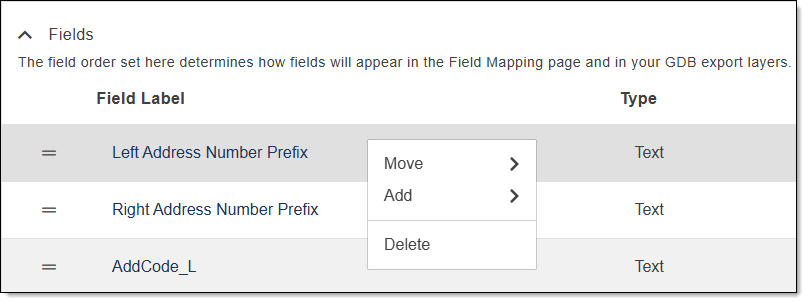
for the field you want to delete. The field highlights and a pop-up with available actions opens.
-
Click Delete.
A confirmation message appears confirming you want to delete the field.
- Click Yes, Delete to confirm or click Cancel.
Tip: To quickly delete a field, follow the instruction above to locate the field you want to delete, then right-click on the field and select Delete.
Customize the Order of the Data Target Layer Fields
There are different ways you can customize the field order to change how the fields appear in the Field Mapping page and in your GDB output. Use the following to customize your fields order.
Sort All Fields
-
From the Fields section, click Sort All Fields
 to open a list of sort options.
 -
From the list, select the option you want to use to sort the fields.
A confirmation message appears asking you to confirm your selection.
Important: Use caution when selecting the sort option of Field Type. If this option is selected, and confirmed and saved, you must manually move the fields to restore to the original order.
-
Click Confirm to apply the changes or select Cancel.
Move a Field Using Drag and Drop
Complete the following to move fields in your list to the order you want them to appear in the Field Mapping page and in your GDB layers using the drag and drop function.
-
Locate the field you want to move in the Field Label column.
-
Hover over the grip lines
 in the field you want to move.
The row highlights, a hand allowing you to grab the field appears, and a message informing you that you can drag and drop to reorder the fields is shown.
Note that only one field can be moved at a time using the drag and drop function. To move multiple fields at once, see Move a Field Using Actions or Move a Field using the Right-Click Menu.
-
Left-click and hold the field you want to move.
-
Drag the field to the location where you want it moved to in the list.
As you drag the field, the location where the field will be placed is highlighted in blue.
-
Release the mouse button to drop the field into place.
The field moved remains highlighted.
-
Repeat for any other fields you want moved.
-
To save your changes click Save or to cancel and undo all of your changes, click Discard.
A confirmation message is shown when complete.
Move a Field Using Actions
Complete the following to move fields in your list to the order you want them to appear in the Field Mapping page and in your GDB layers using Actions.
-
Locate the field you want to move in the Field Label column.
-
(Optional) To move more than one field at a time, press and hold control and click the grip lines
for all the fields you want to move.Selected fields are highlighted.
-
In the field under the Actions column, select
. -
In the pop-up that opens, hover over Move, then click to select an option to move the field up, down, to the top or to the bottom.
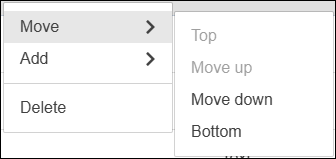
The field(s) is highlighted and moves to the location selected. If multiple fields were selected, they remain in the order they were in the Fields section.
-
To save your changes click Save or to cancel and undo all of your changes, click Discard.
A confirmation message is shown when complete.
Move a Field using the Right-Click Menu
Complete the following to move fields in your list to the order you want them to appear in the Field Mapping page and in your GDB layers using the right-click menu.
-
Locate the field you want to move in the Field Label column.
-
(Optional) To move more than one field at a time, press and hold control and click the grip lines
for all the fields you want to move.Selected fields are highlighted.
-
Hover over the field(s) you want to move and right-click.
-
In the pop-up that opens, hover over Move, then click to select an option to move the field(s) up, down, to the top or to the bottom.
The field(s) is highlighted and moves to the location selected. If multiple fields were selected, they remain in the order they were in the Fields section.
-
To save your changes click Save or to cancel and undo all of your changes, click Discard.
A confirmation message is shown when complete.
Shortcuts to Add a Field
Add a Field Using Actions
-
Locate the row in the Field Label column where you want to add a new field.
-
In the field under the Actions column, click
. -
In the pop-up that opens, hover over Add, then click to select an option to add a new field above or below the highlighted field.
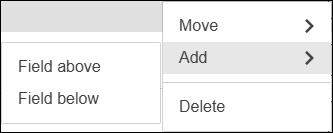
The field is added based on your selection, has a Field Label of New Field, and a warning is shown alerting you that the new field is not configured. Click the new field to expand and see Add a Custom Field to a Layer for instruction on configuring the new field.
-
To save your changes click Save or to cancel and undo all of your changes, click Discard.
A confirmation message is shown when complete.
Add a Field Using the Right-Click Menu
-
Locate the field in the Field Label column where you want to add a new field.
-
Hover over the field and right-click.
-
In the pop-up that opens, hover over Add, then click to select an option to add a new field above or below the highlighted field.
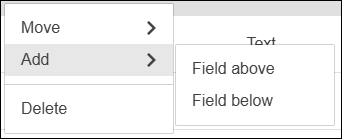
The field is added based on your selection, has a Field Label of New Field, and a warning icon
is shown alerting you that the new field is not configured. Click the new field to expand and see Add a Custom Field to a Layer for instruction on configuring the new field. -
To save your changes click Save or to cancel and undo all of your changes, click Discard.
A confirmation message is shown when complete.